Screen Recorder for PC Is the Software That Captures Your Windows Desktop as Video
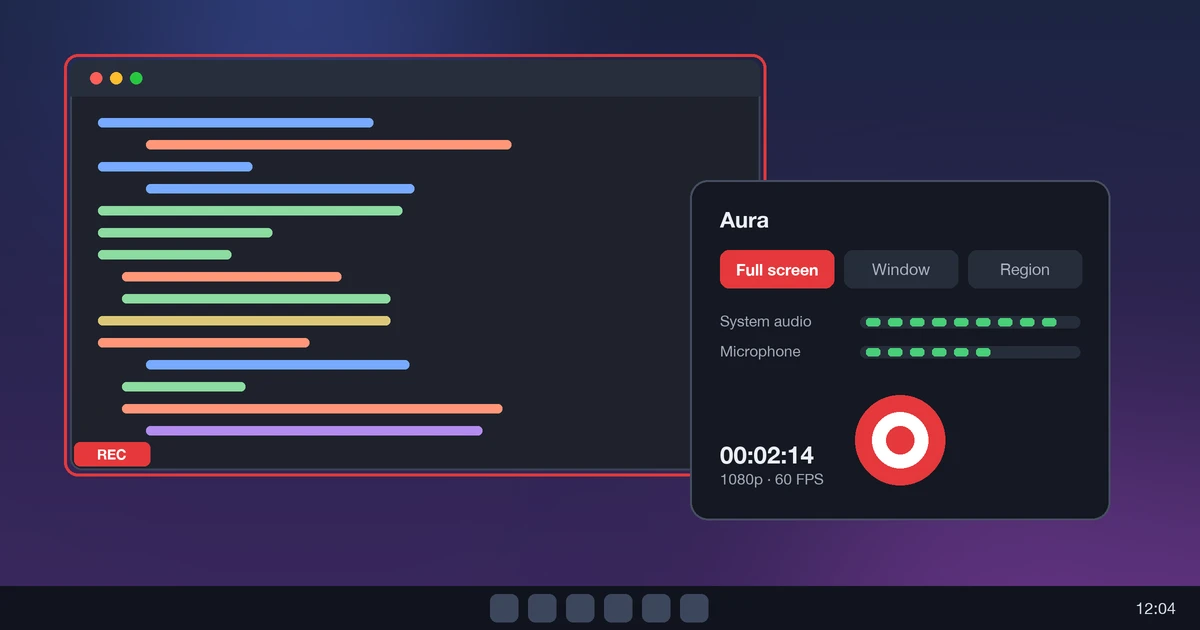
A screen recorder for PC captures everything happening on your Windows display, along with system sound and your microphone, and saves it as a video file such as MP4. Whether you are building a tutorial, saving a gameplay clip, documenting a bug or recording a meeting, a good screen recorder for PC turns a moving desktop into something you can edit and share. This guide explains how each option works, which settings matter and how to pick the right tool. Our own pick is Aura, a free and open source screen recorder for PC. When you are ready, you can download Aura, the screen recorder for PC, and start recording in under a minute.
What is a screen recorder for PC?
A screen recorder for PC is an application that records the video output of a Windows computer, usually with audio from the system and the microphone, and writes it to a file. It can capture the full desktop, a single window or a chosen region, at frame rates from 30 to 60 frames per second or higher.
Windows already ships with two basic tools: Xbox Game Bar and, in Windows 11, the Snipping Tool. Both are convenient, and both have limits. Xbox Game Bar records one app window at a time and will not capture File Explorer or the desktop itself. A dedicated screen recorder for PC removes those limits and adds annotation, webcam overlays, scheduled recording and trimming. Most modern recorders use your graphics card's hardware encoder (NVIDIA NVENC, AMD AMF or Intel Quick Sync), which keeps the performance cost low even at 1080p60.
The output is normally H.264 video with AAC audio in an MP4 container. That combination plays on virtually every device and uploads to YouTube, Discord and Microsoft Teams without conversion. Understanding this basic pipeline of capture, encode and save helps you troubleshoot the most common problems, from choppy playback to oversized files.
What people use a screen recorder for PC to do
The reason you need a screen recorder for PC shapes which features you should prioritise. Six use cases account for most recordings:
- Tutorials and training. Teachers and support teams record a walkthrough once instead of explaining it many times. A screen recorder for PC with a mouse highlight and a microphone track makes each step easy to follow.
- Gameplay capture. Players record highlights and speedruns. For this use, a screen recorder for PC should hold a steady 60 FPS with hardware encoding so the game itself does not stutter.
- Software demos. Product teams record short clips for documentation, release notes and sales calls.
- Bug reports. A 20-second recording shows developers exactly how to reproduce an issue, which is faster than a paragraph of description.
- Meetings and webinars. Recording a call preserves decisions for people who could not attend. Always tell participants before you record, and check your local consent rules.
- Video essays and streaming prep. Creators capture footage, then edit it in a separate video editor.
Features to look for in a screen recorder for PC
Not every screen recorder for PC is built for the same job, so judge each one against the features that match your use case.
Capture modes
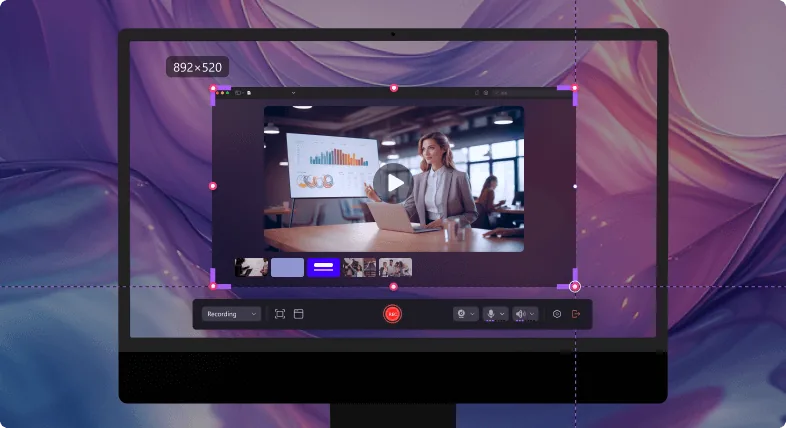
Full screen, single window and custom region are the essentials. Multi-monitor support matters if you work across two displays, because you may want to record only one of them.
Audio sources
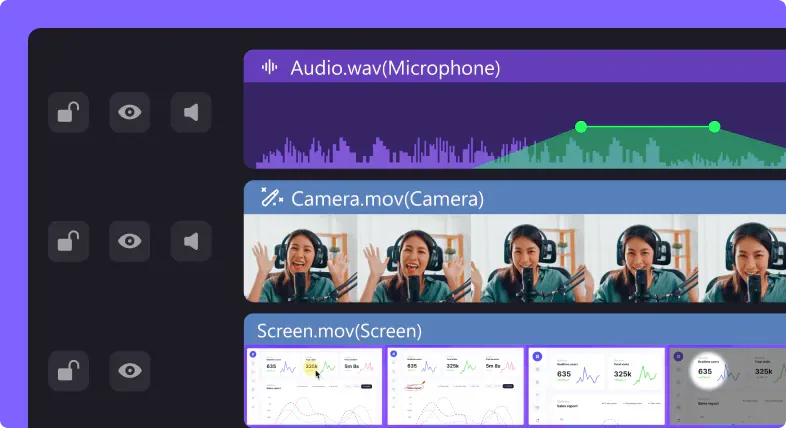
The best screen recorder for PC lets you record system audio and the microphone as separate tracks. Separate tracks let you lower game noise or remove background sound later without re-recording.
Frame rate and resolution
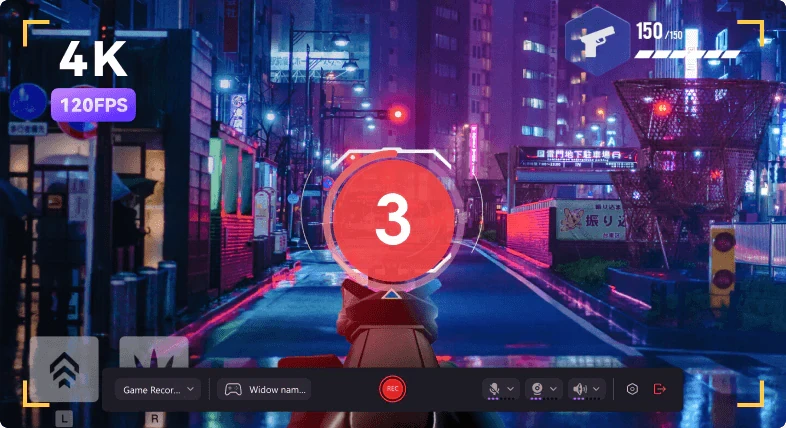
Look for 1080p at 30 and 60 FPS as a baseline, with 1440p and 4K available if your hardware and storage can handle them. Tutorials look fine at 30 FPS. Fast motion such as games benefits from 60 FPS.
Performance and encoding
Hardware encoding through NVENC, AMF or Quick Sync offloads the work from your CPU. A recorder that supports it will barely affect frame rates in most games.
Editing and export
Built-in trimming saves a trip to a video editor. Export choices such as MP4, MKV and GIF give you flexibility for different platforms.
Cost and watermarks
Some free tools add a watermark or cap recording length. Check both before you commit to a workflow, particularly if you publish recordings publicly.
Screen recorder for PC comparison: built-in and third-party options
The table compares the tools most people try first. Details reflect each tool's documented behaviour on Windows 10 and 11 as of September 2026.
| Tool | Cost | Captures | Best for | Main limitation |
|---|---|---|---|---|
| Xbox Game Bar (Win+G) | Free, built in | One app window | Quick game and app clips | Cannot record the desktop or File Explorer |
| Snipping Tool (Windows 11) | Free, built in | Selected region | Short region recordings | Few audio and encoding options |
| OBS Studio | Free, open source | Screen, window, webcam, game | Streaming and multi-source scenes | Steeper learning curve |
| ShareX | Free, open source | Screen, region, window | Screenshots plus quick GIF and video | Dense interface; needs FFmpeg |
| Aura (our pick) | Free, open source | Full screen, window, region | One-click tutorials and demos | Newer project with a smaller community |
If you only need a short clip of one application, Xbox Game Bar is enough. If you stream or composite several sources, OBS Studio is the standard free choice. If you want a single simple screen recorder for PC that handles full screen, windows and regions without setup, Aura is the shortest path from idea to finished file. You can get Aura, the free screen recorder for PC, here.
How to record your screen on a PC
With Xbox Game Bar
- Open the app you want to record and press Win + G.
- Press Win + Alt + R to start recording.
- Press the same shortcut to stop. The MP4 is saved in Videos\Captures.
With the Windows 11 Snipping Tool
- Press Win + Shift + R.
- Drag to select the region, then choose Start.
- Choose Stop when you finish, then save or share the clip.
With Aura, a dedicated screen recorder for PC
- Download and install Aura, the screen recorder for PC.
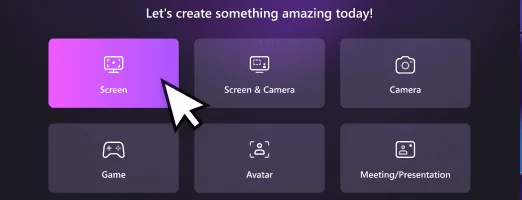
- Choose full screen, a window or a region.
- Turn on system audio, microphone or both.
- Start recording, then stop when you finish and trim if needed.
Whichever route you choose, record a ten-second test first. It confirms that video, system audio and microphone are all present before you commit to a long take.
Screen recorder for PC demo video
This 25-second demo shows a screen recorder for PC capturing a slide deck with webcam picture-in-picture, then opening the scheduled recording dialog. The clip has no audio, so follow the on-screen controls. Watch how region selection, microphone and system audio controls sit in one toolbar.
Best settings for HD recording on PC
The right settings depend on where the video ends up. The values below follow YouTube's recommended upload bitrates and common encoder practice, and they suit most screen recorder for PC setups.
| Use case | Resolution | Frame rate | Video bitrate | Approx. file size |
|---|---|---|---|---|
| Tutorials and demos | 1080p | 30 FPS | 8 Mbps | 60 MB per minute |
| Gameplay | 1080p | 60 FPS | 12 Mbps | 90 MB per minute |
| Meetings | 720p to 1080p | 30 FPS | 4 to 6 Mbps | 30 to 45 MB per minute |
Use MP4 with H.264 for compatibility, and record audio as AAC at 48 kHz. To estimate storage, divide the bitrate in megabits per second by 8 to get megabytes per second, then multiply by 60. At 12 Mbps that is 1.5 MB per second, or about 5.4 GB per hour, so check free disk space before a long session.
Tips for smoother recordings with a screen recorder for PC
- Close background apps. Browsers with many tabs and cloud sync tools compete for CPU, disk and memory.
- Record to an SSD. A fast drive avoids dropped frames when bitrate is high.
- Use hardware encoding. Select NVENC, AMF or Quick Sync in your recorder settings where available.
- Silence notifications. Turn on Focus assist or Do Not Disturb so private messages never appear on screen.
- Set your resolution first. Match your recording resolution to your display, or scale down deliberately to keep text readable.
- Do a sound check. Record a short clip, play it back and adjust the microphone level before the real take.
- Trim, do not re-record. Cutting dead time at the start and end is quicker than another take.
Privacy, licensing and compatibility
Recording your display can capture more than you intend. Before you share any clip made with a screen recorder for PC, replay it once and look for open email, chat windows, passwords in autofill dropdowns and file paths that reveal personal information. Most recorders let you capture a single window or region, which is the safest way to keep unrelated content out of frame.
Compatibility is rarely a problem. Windows 10 and Windows 11 both support the built-in tools described above, and current third-party recorders run on either version. Older graphics drivers are the most common cause of black frames or failed hardware encoding, so update your GPU driver first if a recording comes out blank.
Finally, respect copyright and consent. Recording your own work, your own gameplay or a meeting you host is straightforward. Capturing streamed films, paid courses or private calls may breach a service's terms or local law, so confirm you have the right to record before you publish or distribute the result.
How we tested these settings
Every value on this page comes from recordings made by the Aura Team on Windows 10 and Windows 11. We record short clips at each resolution and frame rate, compare bitrate, file size and dropped frames, and keep only the settings that stay smooth. Figures for storage use standard bitrate arithmetic, so you can check them yourself. We update this guide when Windows or a tool changes and show the date at the top. If you find an error, tell us through the contact section and we will correct it.
Screen recorder for PC: frequently asked questions
What is the best screen recorder for PC?
The best screen recorder for PC depends on the job. Xbox Game Bar is the fastest for a single app, OBS Studio is the most powerful free option for streaming and multi-source scenes, and a dedicated one-click recorder suits tutorials and meetings.
How do I record my screen on Windows 10 or 11?
Press Win+Alt+R while an app is focused to start Xbox Game Bar recording, or press Win+Shift+R in Windows 11 to record any region with the Snipping Tool. A dedicated screen recorder for PC can capture the full desktop, a window or a custom region.
Is there a free screen recorder for PC without a watermark?
Yes. Aura, Xbox Game Bar, the Windows 11 Snipping Tool, OBS Studio and ShareX are all free and add no watermark.
How do I record my screen with audio on PC?
Enable system audio and the microphone in your screen recorder for PC before you press record. Check the levels with a five-second test clip so narration sits clearly above game or app sound.
Does Windows 11 have a built-in screen recorder?
Yes. Windows 11 includes Xbox Game Bar (Win+G) and, in current builds, video recording in the Snipping Tool (Win+Shift+R).
How long can you record your screen on PC?
Recording length is limited by free disk space, not by Windows. A 1080p60 recording at 12 Mbps uses about 90 MB per minute, or roughly 5.4 GB per hour.
How do I record my screen on a PC without lag?
Use hardware encoding (NVENC, AMF or Quick Sync), record to an SSD and close background apps. If frames still drop, lower the frame rate from 60 to 30 FPS or reduce the resolution.
Can I record only part of my screen?
Yes. The Windows 11 Snipping Tool (Win+Shift+R) records a selected region, and Aura lets you drag a custom region and shows its pixel size before you press record.
Start recording with a screen recorder for PC
You now know what a screen recorder for PC does, which features matter and which settings give clean HD video. Pick the built-in tools for quick clips, or take the simpler route and download Aura, the screen recorder for PC, to record your full desktop, a window or a region in a few clicks.